Creating a Work Order
The Add Work Order feature allows Requesters to create work orders in Maintenance Manager for Manufacturing. They can provide a description of the issue, attach supporting files, and specify scheduling requirements to ensure maintenance requests are processed efficiently.
The following steps demonstrate how to create a work order and help your maintenance teams respond quickly.
To create a Work Order:
-
Go to the Work Orders
 icon.
icon. -
Click + Add Work Order button at the upper right corner of the page.

-
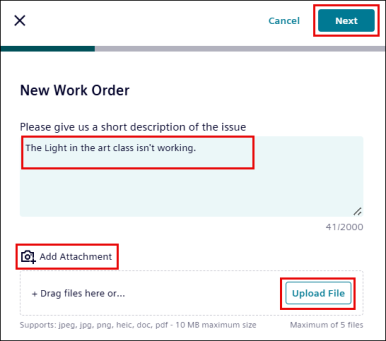
Enter the short description of the issue, for example, “The light in the art class isn’t working.”
-
Add Attachment (Optional)
-
Under Add Attachments, click Upload File button to add images.
-
You may drag and drop to add attachments.
-
NOTE You can only add supported files type: .jpeg, .jpg, .png, and. heic (Maximum size:10MB, up to five files).
-
Click Next.
-
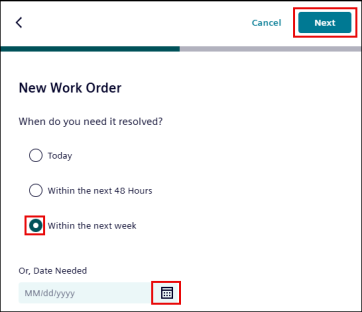
Select the given option or date from the calendar
 icon as required.
-
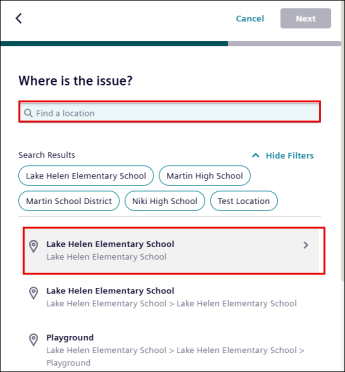
Enter and select the location of the issue from the provided list.
-
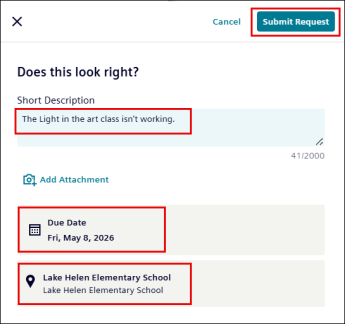
Review the entries.
-
If you want to make changes, click the section you want to update.
-
Click Submit Request to create the work order.
